

Chart plotter limits: zoom, overzoom, settings and autorouting
1The lesson in plain words
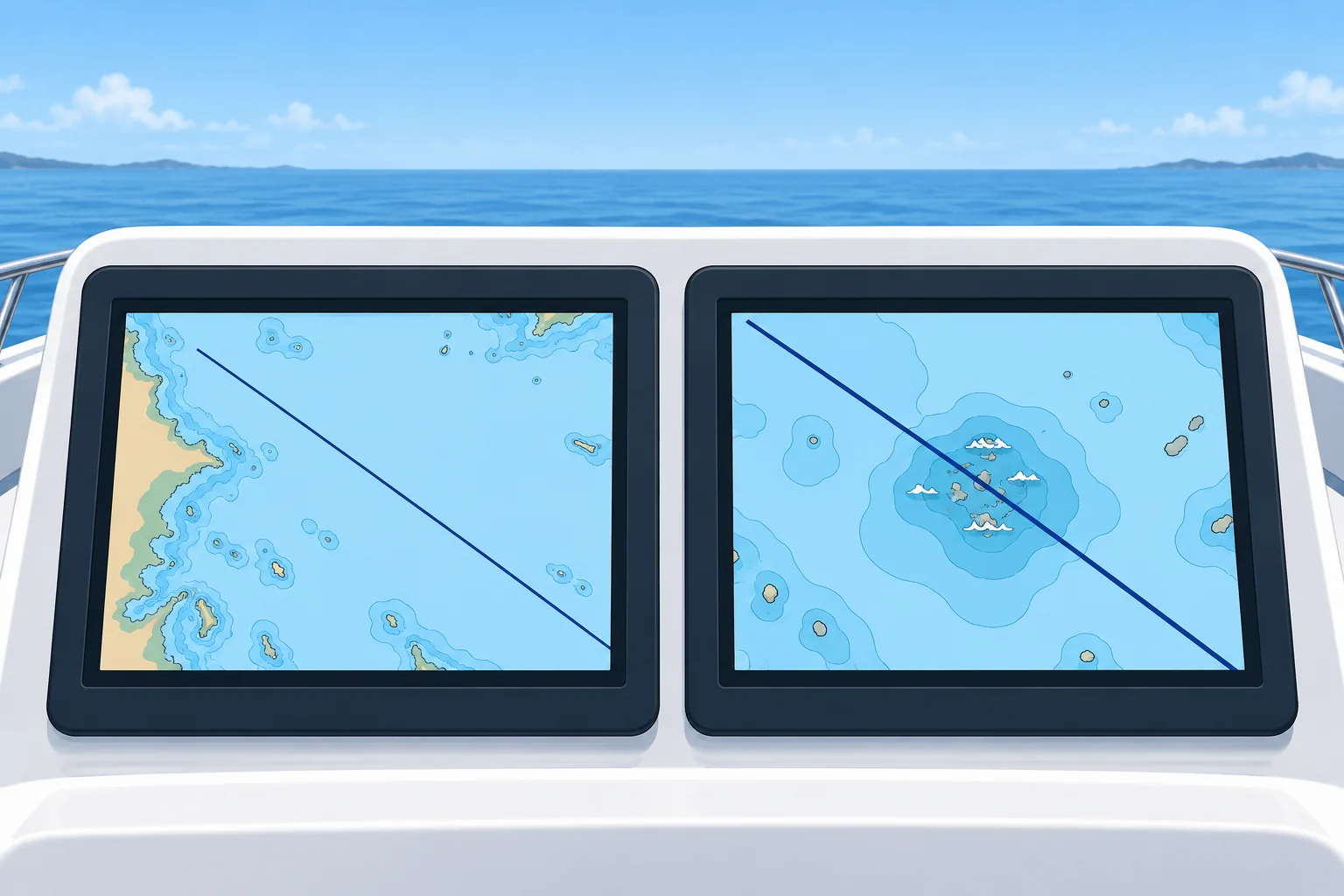
A chart plotter looks precise, but small hazards can vanish when zoomed out, and overzoom magnifies errors. Check settings, updates and every auto-route.
A screen is not the sea
A chart plotter shows your GNSS position on an electronic chart. It looks exact, but it is only as good as the chart data, the plotter's settings and the position fed to it. The boat symbol can sit neatly in a channel while the boat is in the shallows.
Zoom and overzoom
Electronic charts are built from data compiled for certain scales. Zoomed out, the plotter may hide small rocks, wrecks and soundings to keep the screen readable. Zoomed in beyond the data's own scale, called overzoom, it only magnifies the same data: it looks detailed but is no more accurate, and a coastline from a 1:200 000 source can be 100 m or more out. Check hazards at several zoom levels.
Settings and updates
A datum is the coordinate reference used by the chart; WGS84 is the usual one. Match the receiver and chart datum. Your draft is the depth from the waterline to your boat’s lowest point. Follow the manual to set safety-depth shading and autorouting clearance for your draft plus a margin. Check shallow-water alarms separately: these controls may use different settings. Keep charts updated; check the edition and latest update dates in the chart-information menu.
Autorouting
Many plotters offer autorouting: they draw a route for you from your draft, height and safety settings. It works only from the charted data and those settings, and it can cut close to marks or through areas that are unsafe or not allowed. Check every leg yourself, at large scale, before you follow it.
A real lesson
In 2014 a round-the-world race yacht ran onto a charted reef in the Indian Ocean at night, at speed. At the zoom level the crew used to check the route, the reef did not show. The inquiry's lessons: check routes at large scale, use more than one source and carry paper charts and sailing directions.
2Key data
- Overzoom
- Enlarged beyond the data's scale: looks precise, is not
- Zoomed out
- Small hazards may be hidden
- Datum setting
- Normally WGS84
- Depth settings
- Check draft, safety-depth shading, alarms and routing clearance
- Autorouting
- Data and settings only: check every leg
3Key points
- 1
Zoomed out, a plotter may hide small hazards: check at several zoom levels.
- 2
Overzoom magnifies the data without making it more accurate.
- 3
Check draft, safety-depth shading, alarms and routing clearance separately; keep charts updated.
- 4
Autorouting knows only data and settings: check every leg yourself.
4Frequent mistakes
Wrong: If a hazard is not on the screen, it is not there.
Right: It may be hidden at that zoom level. Zoom in along the whole route, and check the paper chart.
Wrong: Zooming right in makes the chart more accurate.
Right: Overzoom only enlarges the same data. It can look sharp and still be 100 m or more out.
Wrong: An autoroute is safe because the plotter worked it out.
Right: It follows only the charted data and your settings. Wrong settings or old data give a wrong route.
5Practice case & exam keys
Your plotter’s autoroute to an island anchorage shows a clear line. Zoomed in, it crosses a 1.5 m patch beside a reef. Your draft is 2.0 m, and the autorouting minimum depth was set to 1.0 m. What went wrong, and what do you do?
Show the answer
The route offers insufficient charted-depth clearance for your draft. Reject it. Following the manual, correct the autorouting depth limit to draft plus a margin. Check safety-depth shading and alarms separately. Re-plan and inspect every leg at large scale and on paper. Verify chart updates and check actual depth before approaching.
Exam keys
- Small hazards can be hidden when zoomed out; check at several zoom levels.
- Overzoom: enlarging beyond the data's scale gives false precision.
- Check draft, safety-depth shading, alarms and routing clearance separately; update charts.
- Check autoroutes leg by leg before you follow them.
Finish this unit
When you've read it, match the terms, then answer three questions. Get them all right to finish the unit; opening the page alone doesn't count.
My notes for this unit
No notes